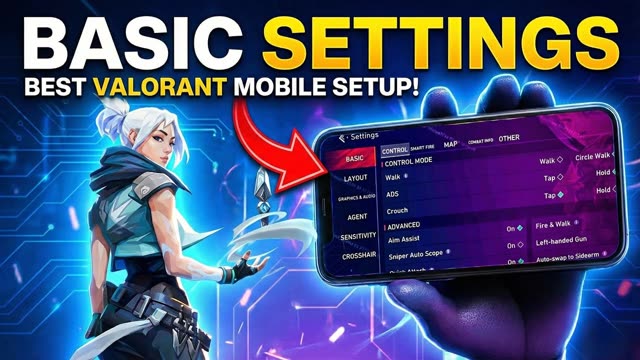
 Watch the video on YouTube
When you open the settings menu in Valorant Mobile, the first tab is Basic. Most of what decides how the game feels in your hands lives here, so it is worth ten minutes to set it up properly. This guide goes through it top to bottom.
Walk settings
Moving normally makes loud footsteps that enemies can hear. Walking makes you silent. The game gives you three ways to do it:
- Walk
- Adds a separate walk button. Tap it and you move silently in any direction with the joystick. It switches off by itself as soon as you fire or crouch.
- Walk circle
- The walk is built into the joystick. You slide the joystick only a little to walk. It saves screen space, but it can feel tricky when you are new.
- Standard walk
- Adds a whole second joystick that only walks. Use that stick whenever you want to move without noise.
Scope mode and crouch
Both buttons have the same three choices:
- Tap: tap once to turn it on, tap again to turn it off.
- Hold: it stays on while you hold the button and stops when you let go.
- Mixed: both work, a quick tap toggles and a hold acts as hold.
Advanced settings
Some of these change the way you play a lot.
- Aim assist
- Helps you land shots. Useful when you are starting out.
- Sniper auto-scope
- Scopes in for you the moment you fire a sniper. Good for quick snipes.
- Quick rope hold
- Smoother control on ziplines and ropes.
- Smart weapon system
- Puts you back on your previous or strongest weapon as soon as you respawn, so you are never fumbling through weapons at the start of a fight.
- Weapon inspection
- Shows an inspect button. Faster trick: swipe your melee or weapon icon left or right to inspect.
- Left-hand view
- Flips the layout for left-handed players.
- Rotation perspective
- Decides whether the fire or scope button also turns your view when you tap or hold it.
Tip If you play with four fingers, turn rotation perspective off. It can drag your aim. With two fingers, leaving it on can make things easier.
Smart fire, set per weapon
Every weapon class (pistols, SMGs, rifles, machine guns, snipers, shotguns) gets its own firing rule. Open a class and pick one:
- Off: no smart fire, you control everything.
- Scope fire: the gun fires the moment you aim down sights.
- Crouch fire: you crouch and fire together.
- Crouch + scope fire: crouch and aim down sights at the same time.
A common setup is scope fire on snipers, so the shot goes off as soon as you scope, and plain tap-to-fire on SMGs so you do not waste ammo.
Map settings
- Radar mode: local shows only the area around you, global shows the whole map.
- View mode: the minimap either rotates with you or stays fixed in one direction.
- Vision cone: a triangle on the minimap that shows where you are looking.
- Map expand method: open the big map with its own button, or by tapping the minimap.
- Location name: shows where you are, like A site, mid or B site.
- Big map names: never, only during the buy phase, or always.
Combat info and spike rounds
- Kill feed names and ability broadcasts in the top feed.
- Skill tags and the skill guideline, a line that shows where smokes and grenades will land. Very handy for aiming utility.
- Enemy outline colour, to make enemies easier to spot.
- Round economy summary, site reminders and a spike reminder.
- Teammate head info (health, abilities) and a voice ring that shows who is talking.
Comms
The last part is about talking to your team without voice: auto-mark enemies you shoot or spot, double-tap anywhere to ping, suggested quick comms after a ping, in-game quick chat and emotes, and a comms wheel you can fill with your own calls (walk, rotate, fall back, rush, need healing). You can keep separate wheels for attack and defense.
Written by Zibno, based on my video. Settings can change with game updates.